Setting Up Firebase Cloud Messaging (FCM) for Android
Detailed instructions for Firebase Cloud Messaging Application Project for your Android application with Firebase / Google Services.
To enable push notifications in your Android app, you need to create a Firebase Cloud Messaging (FCM) project and obtain a private key.
Requirements
Push0 account is required. If you did not create your Push0 account yet please head to Push0 registration
Follow these steps:
1. Create a Firebase Project
1 - Go to the Firebase Console
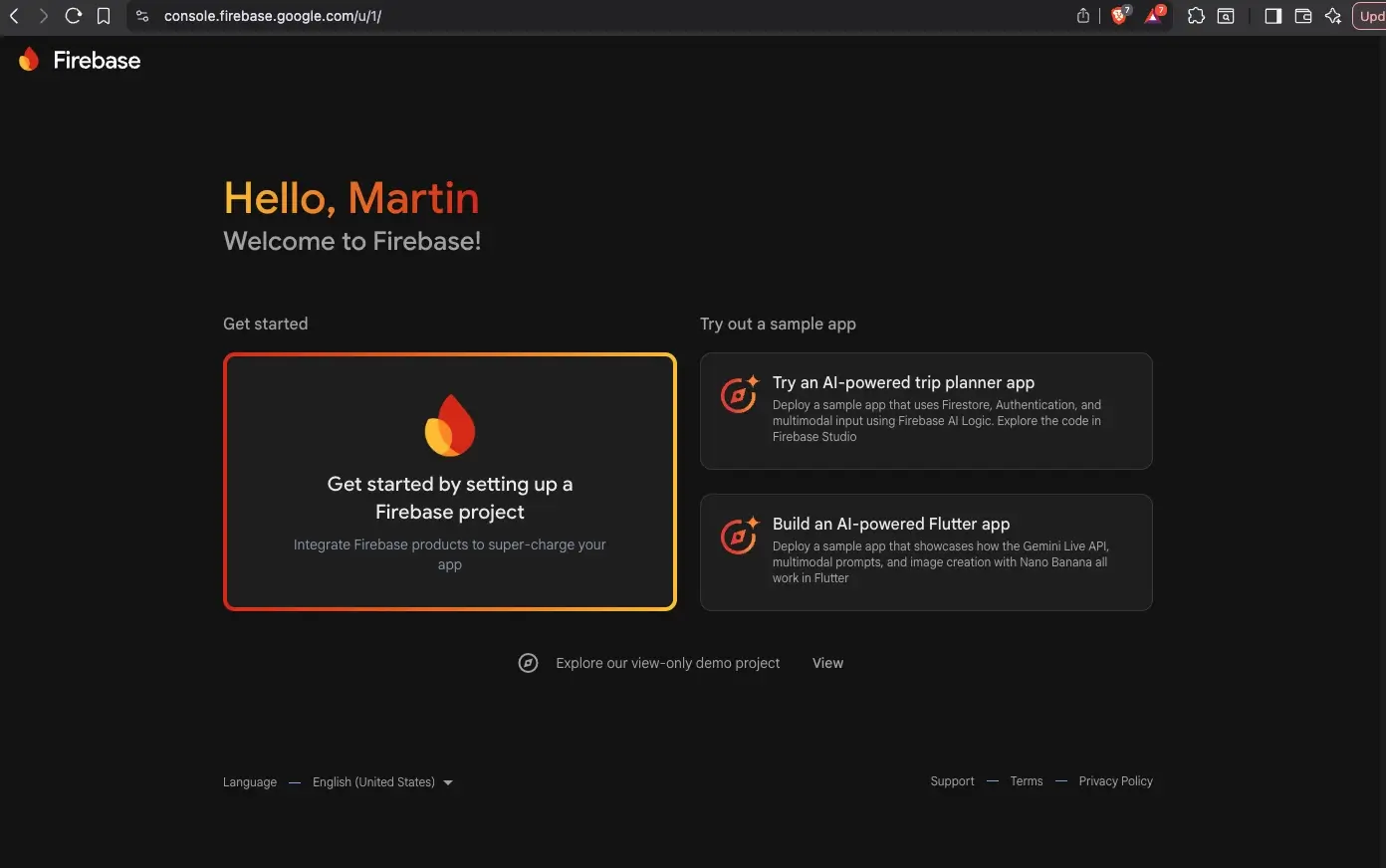
2 - Click Add project and follow the instructions to set up a new project.
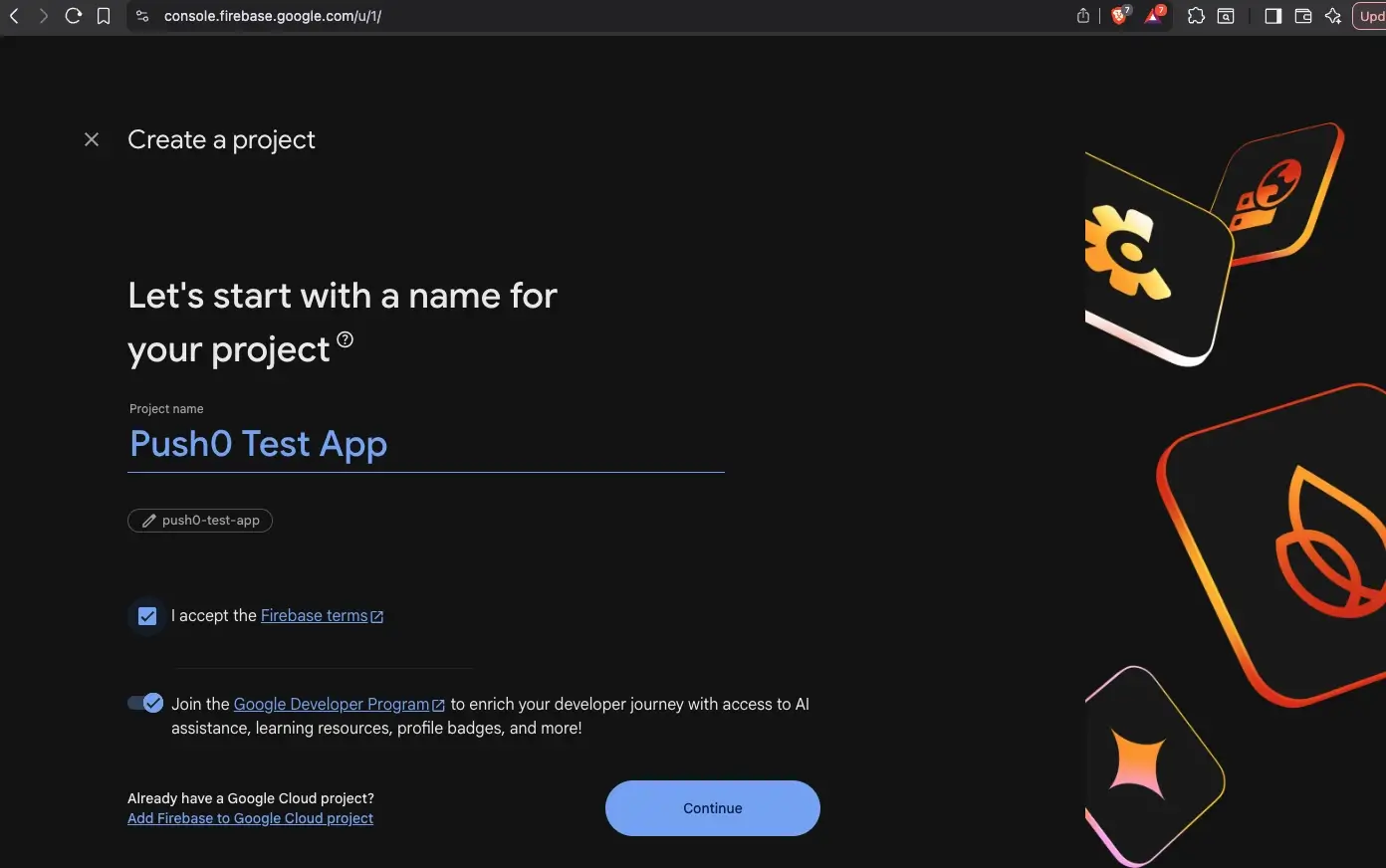
3 - Give your project a name and select your country/region.
4 - Wait for Firebase to finish creating your project.
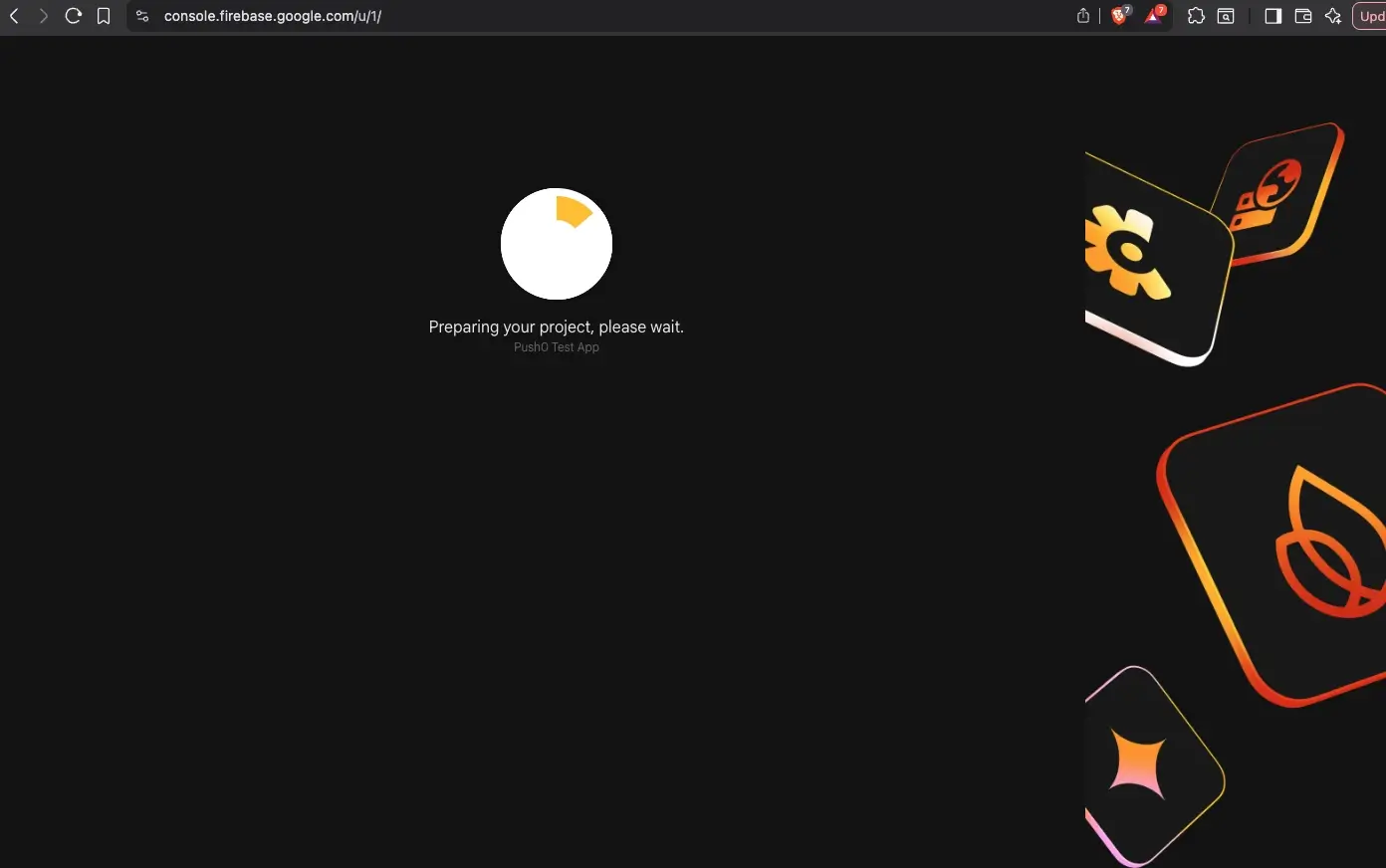
5 - Success ✅
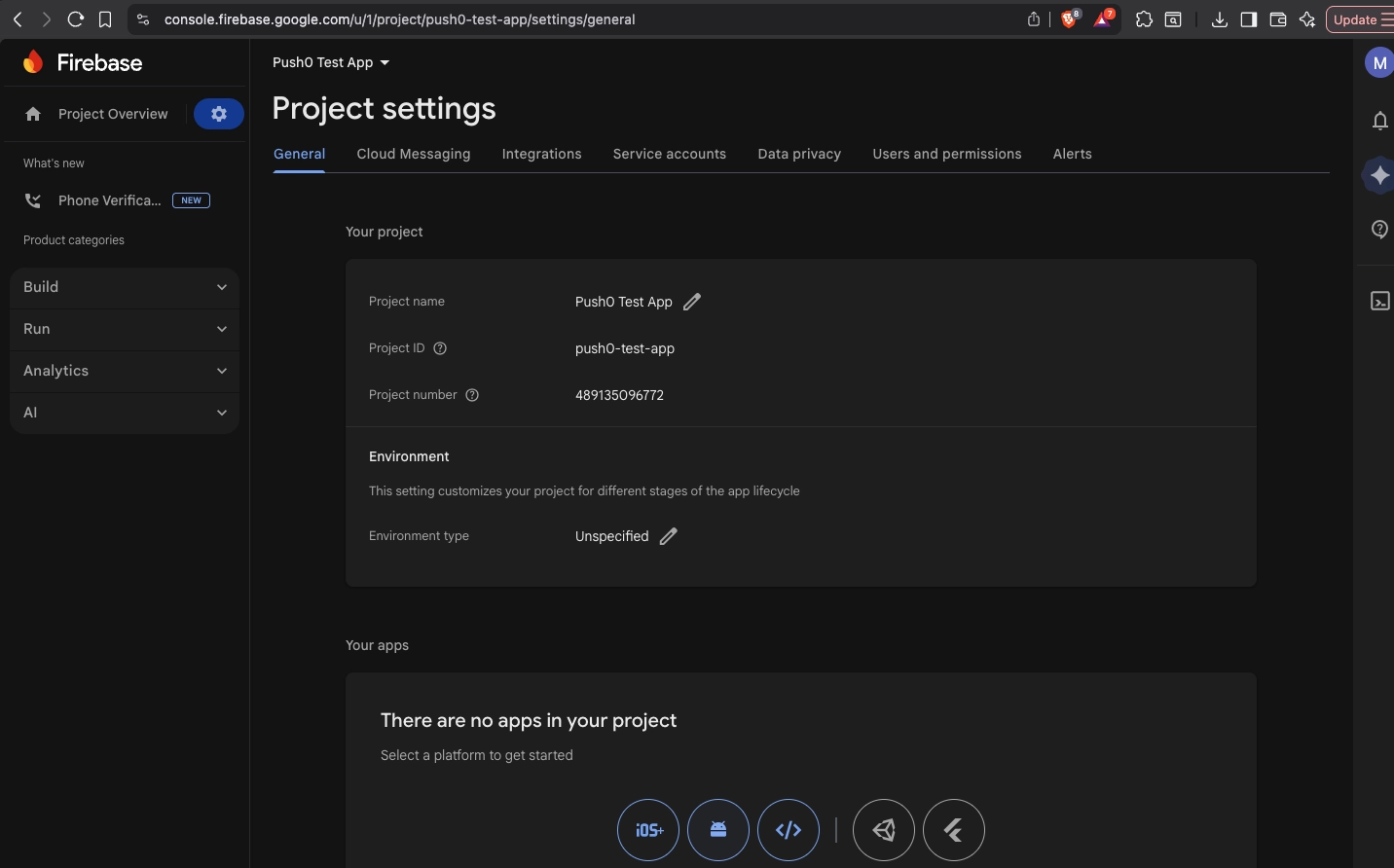
2. Firebase Project android application configuration
1 - Click on the icon on the right side of Project Overview
2 - Click General
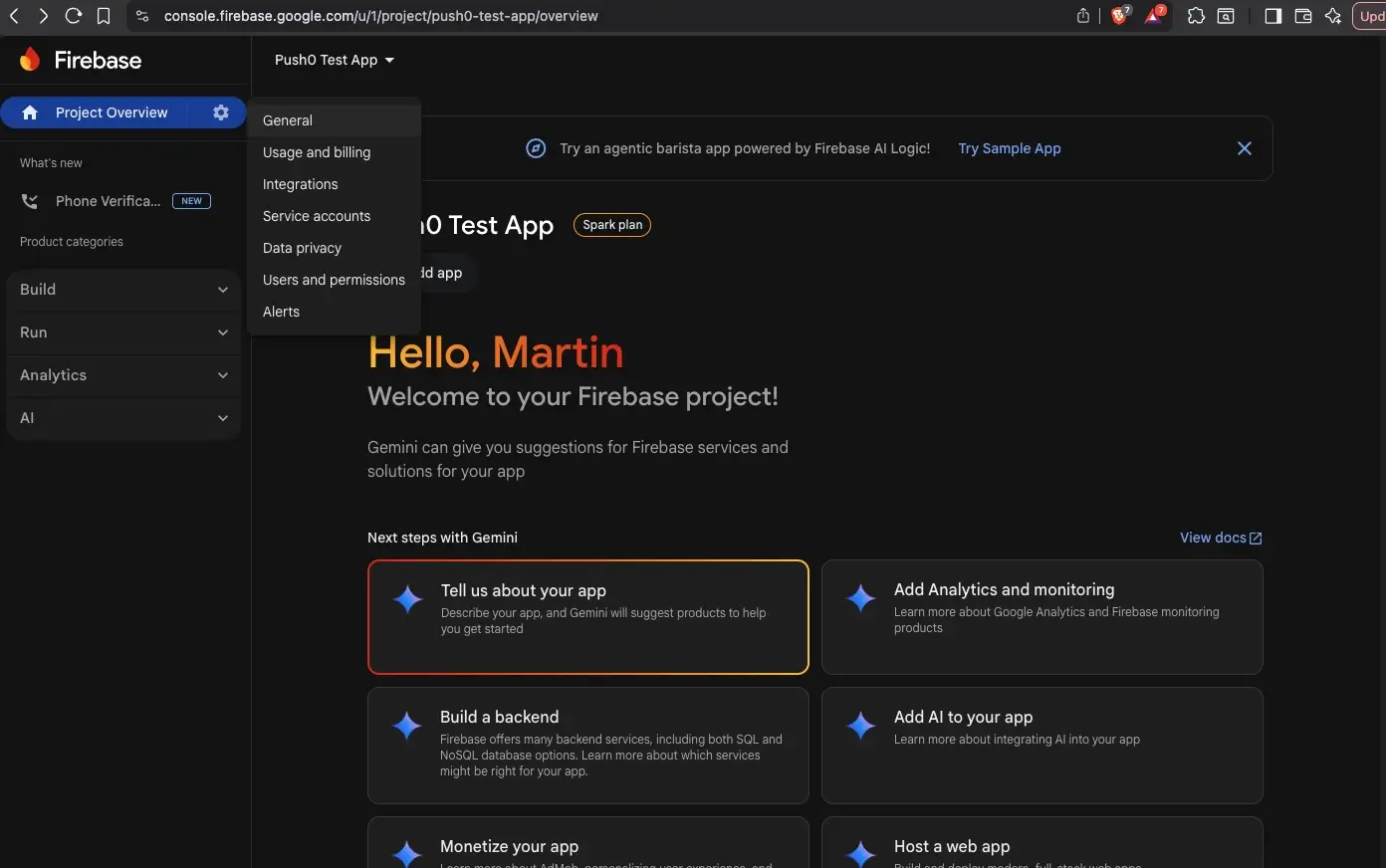
3 - In General in section Your apps click android icon
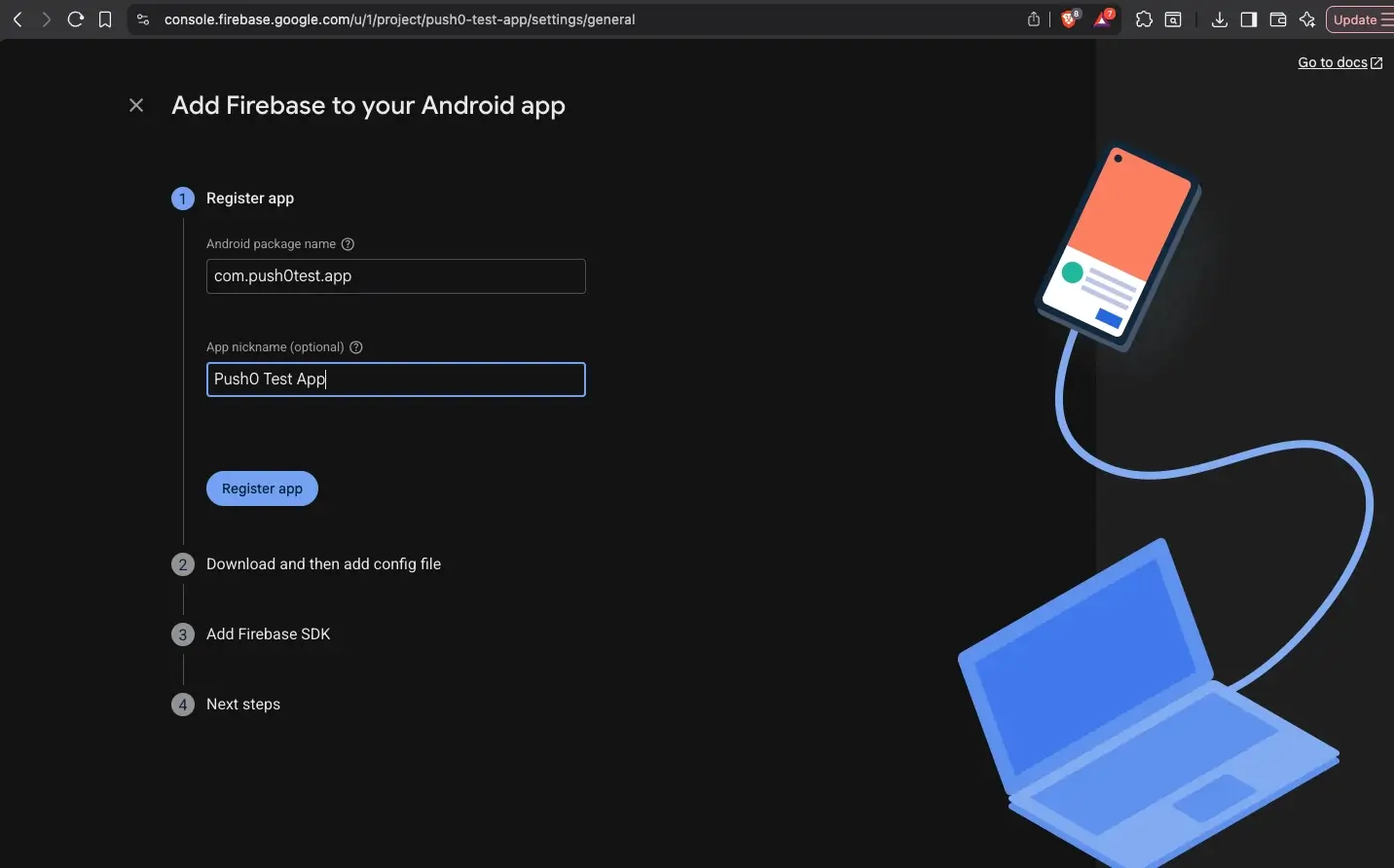
4 - Type your android app informations such as App name and package name for example: com.push0test.app
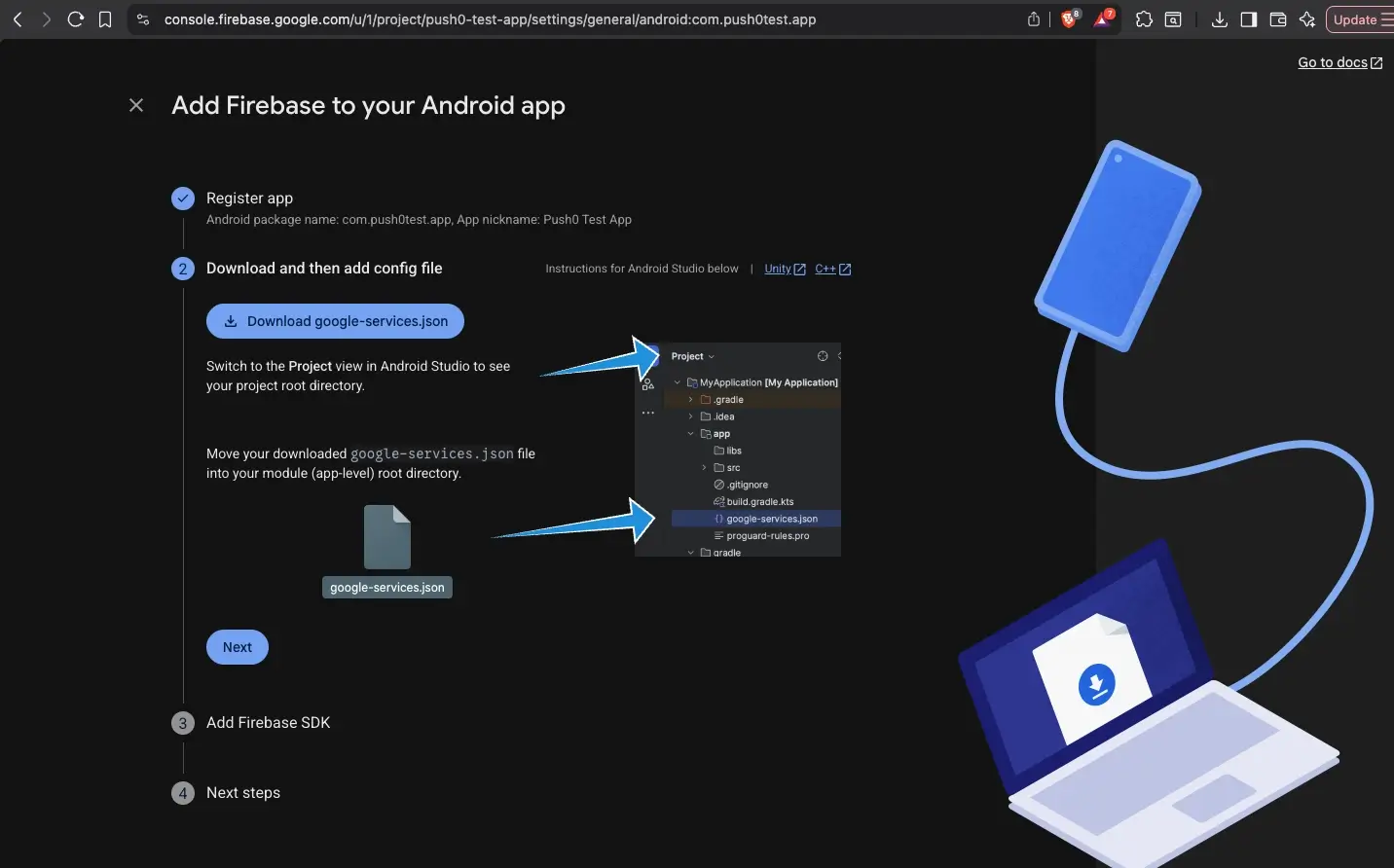
5 - Download your google-services.json file and paste it inside your android project app folder
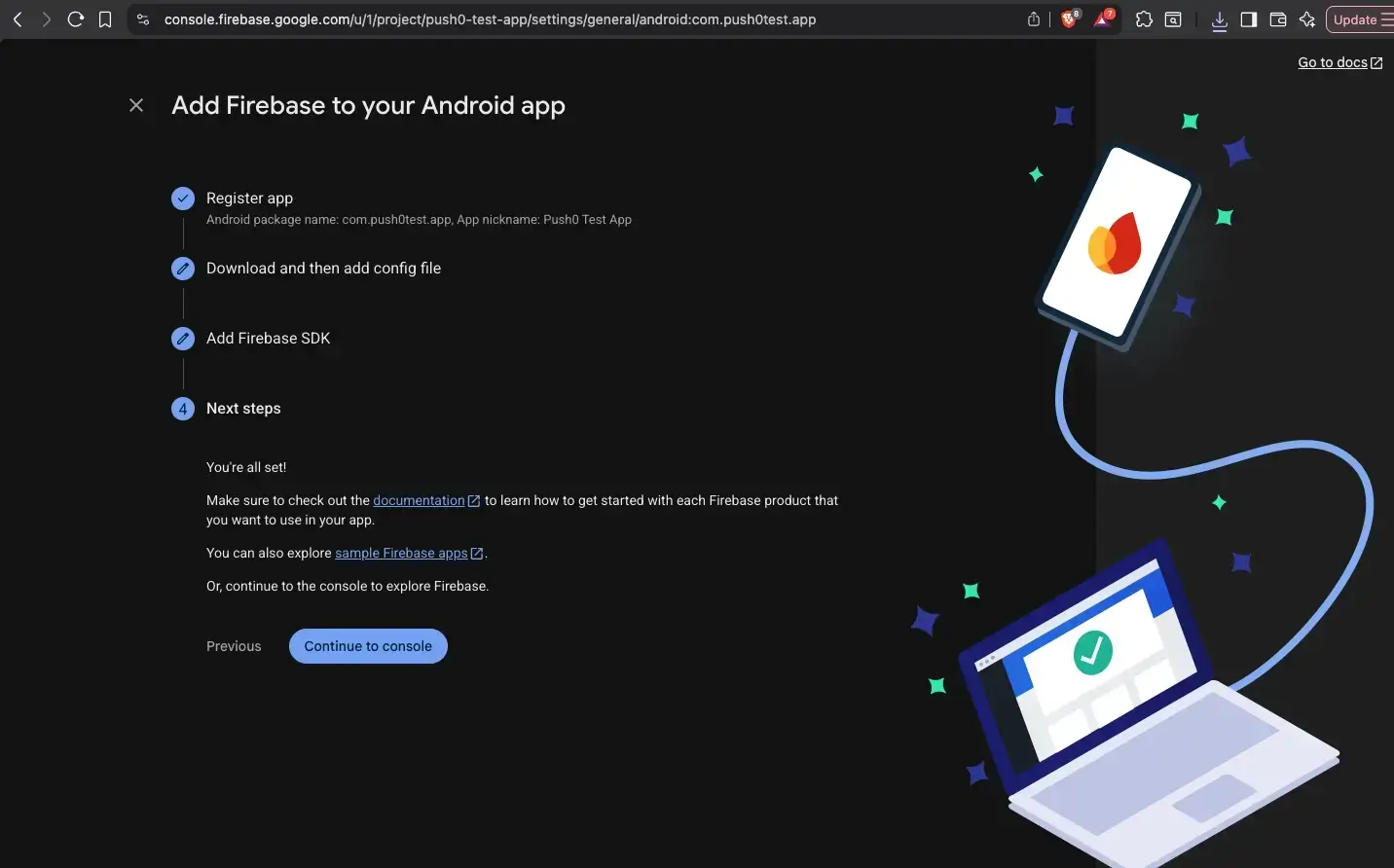
6 - Finish configuring your android app and go back to console
3. Firebase Project admin generating private key
1 - Click on Service accounts
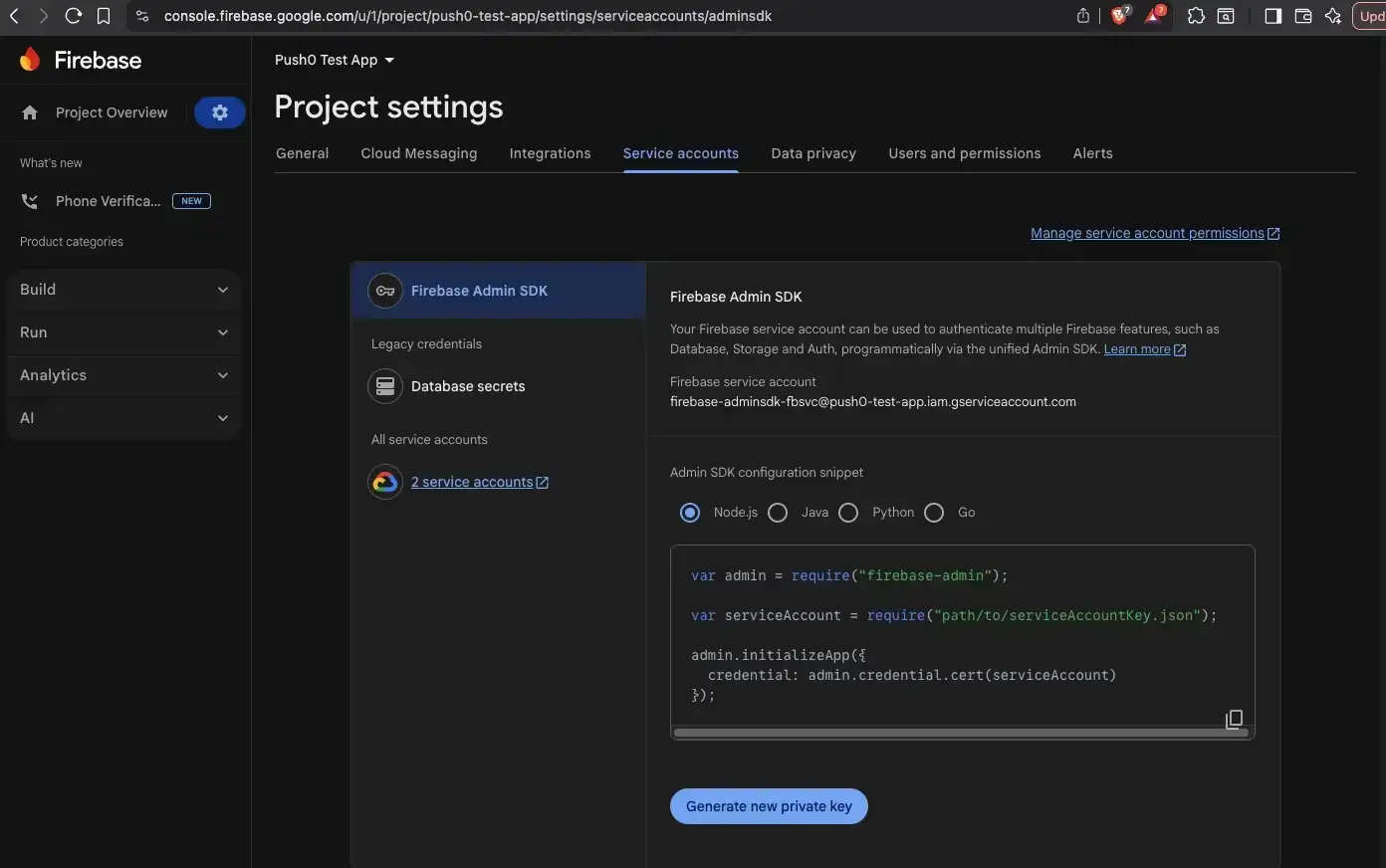
2 - Click on Generate new private key button and then click Generate key button. Your server private key should be downloaded. Keep it
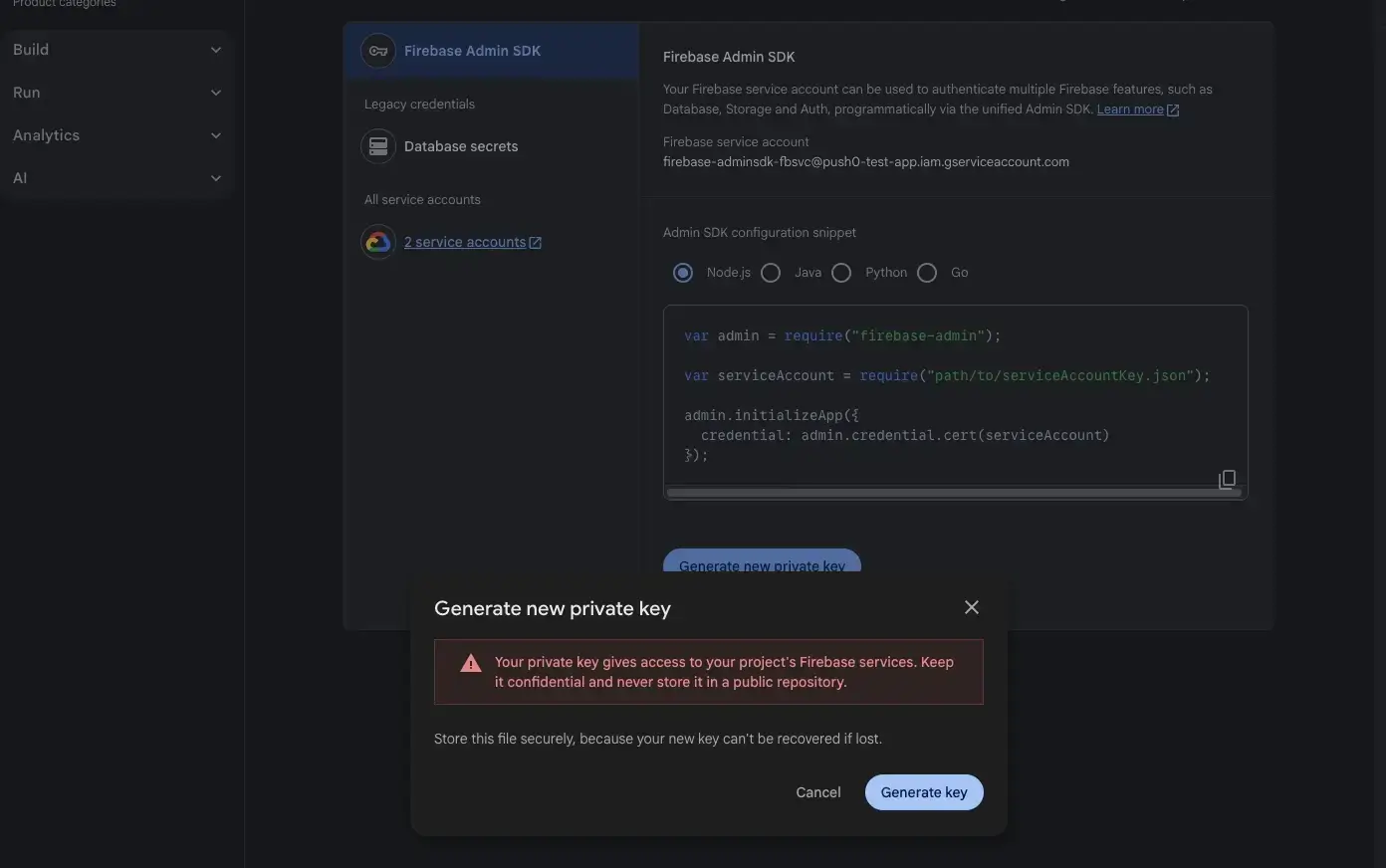
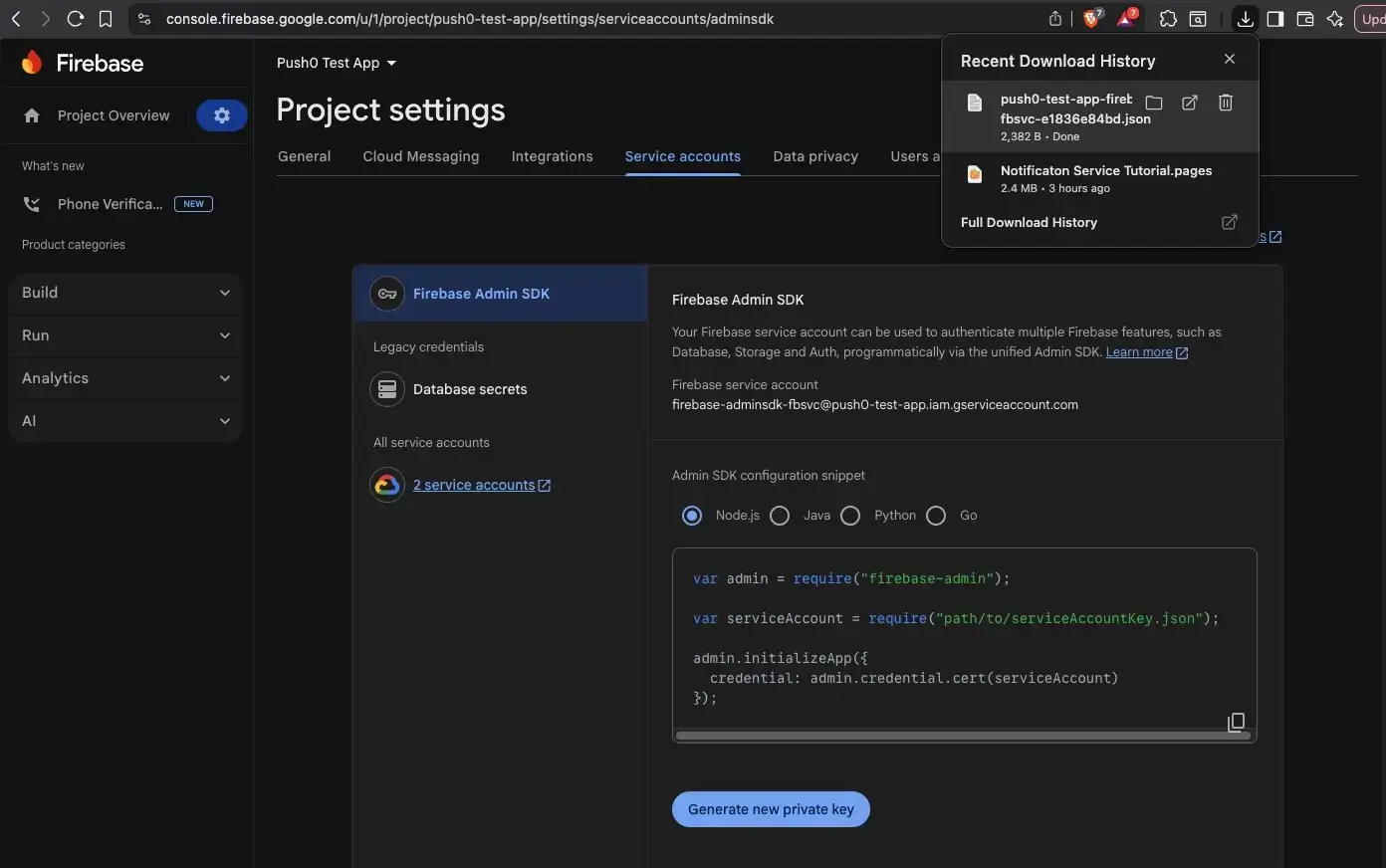
3 - Your server private key json file starting with firebase-adminsdk in the name - should be downloaded. Keep it!
4. Push0 application configuration
1 - Go to the Push0 Account Log In and log in.
2 - Go to Apps and click on Create app button
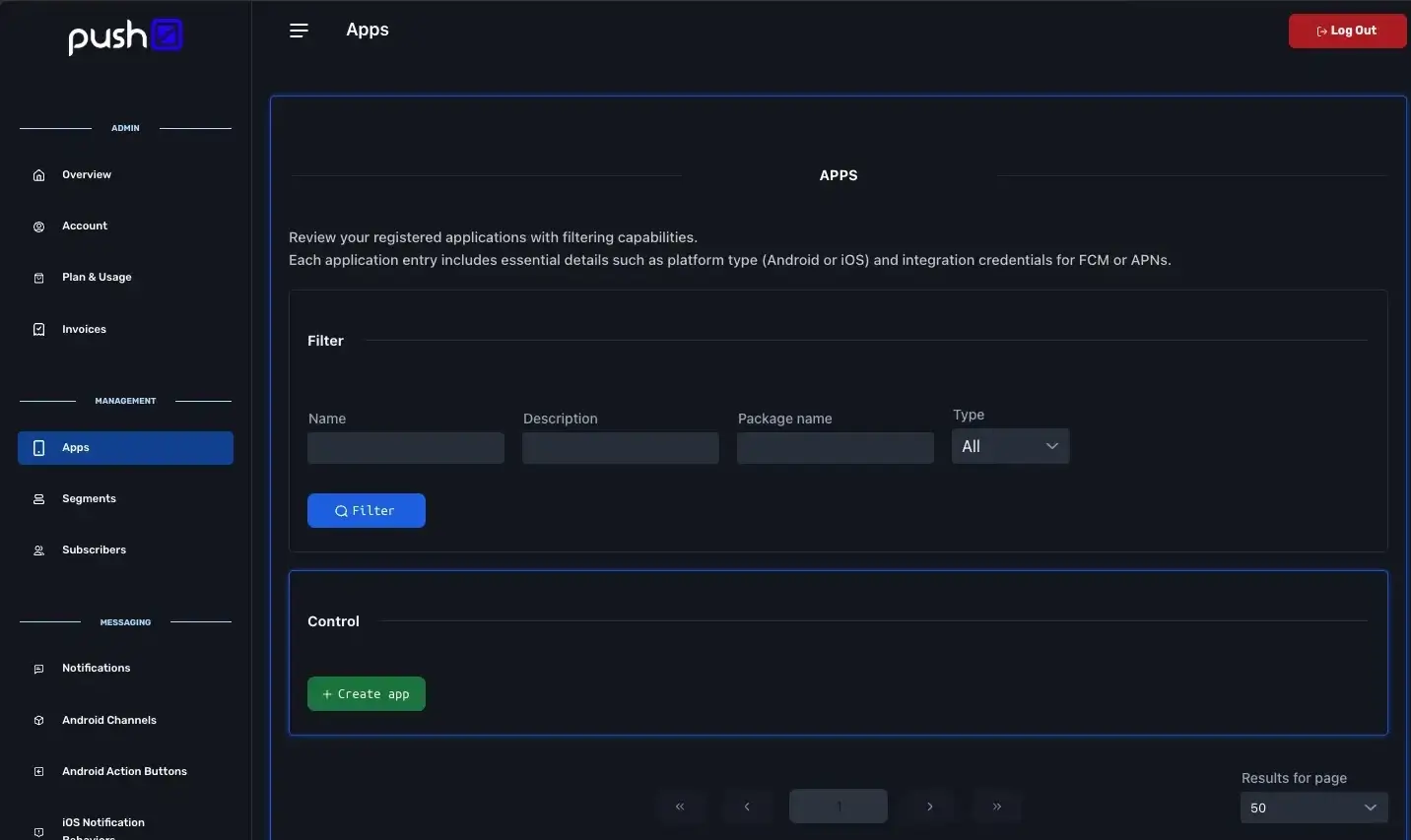
3 - Type your app name and package name.
Warning
Package name must be the same as the one typed in Firebase Android project configuration.
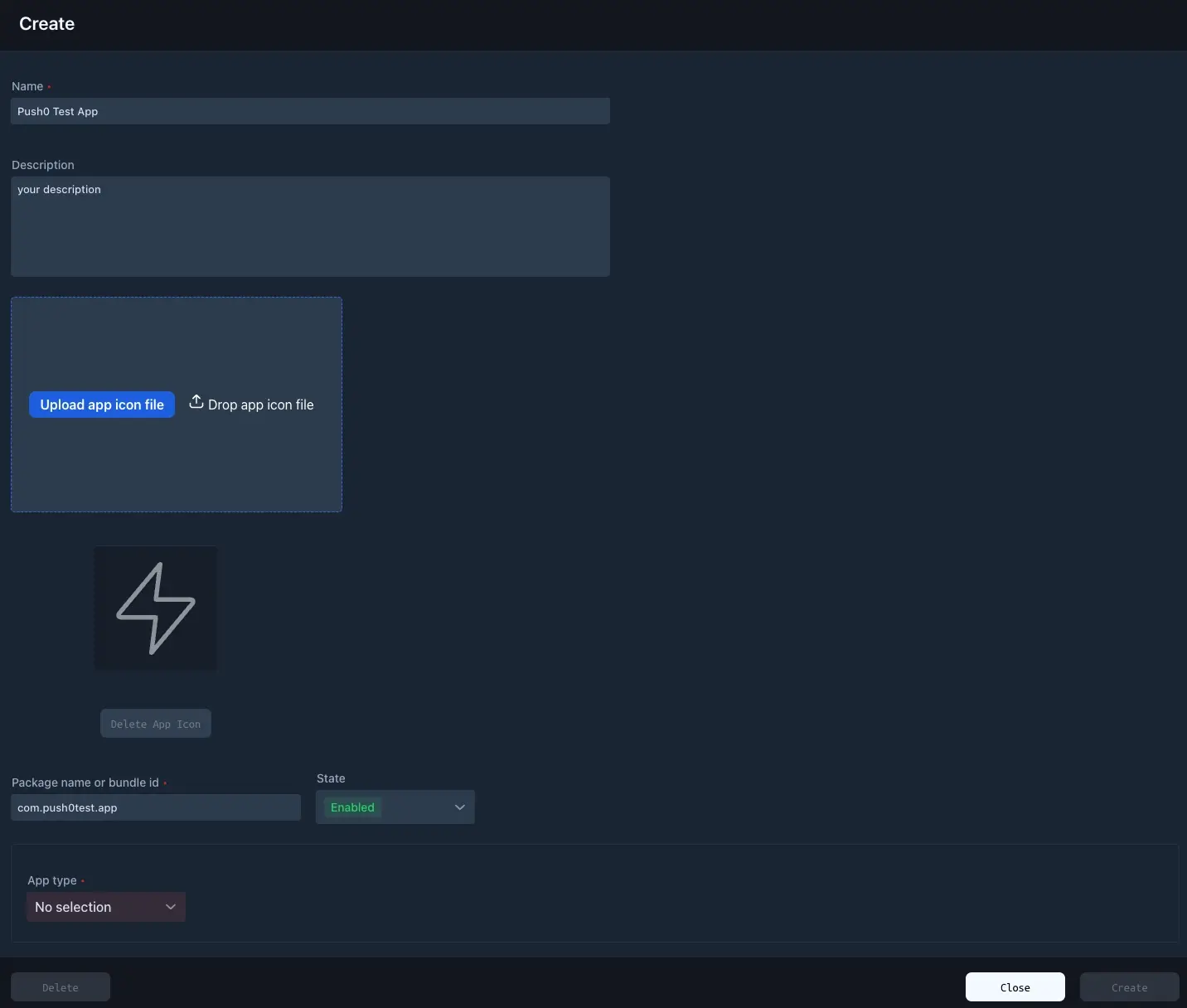
4 - Select app type android
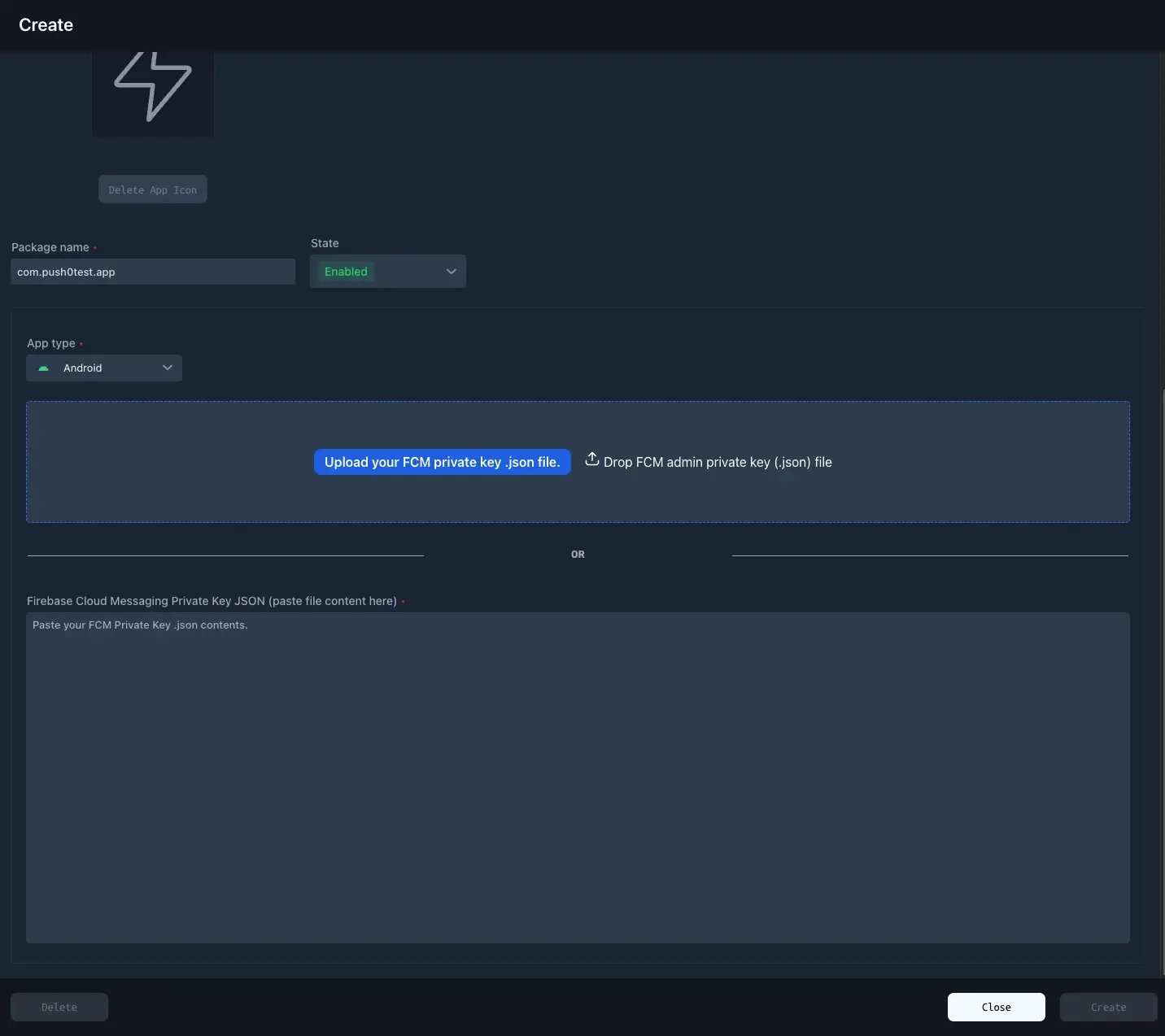
5 - Upload your firebase-adminsdk json file (from 3.3)
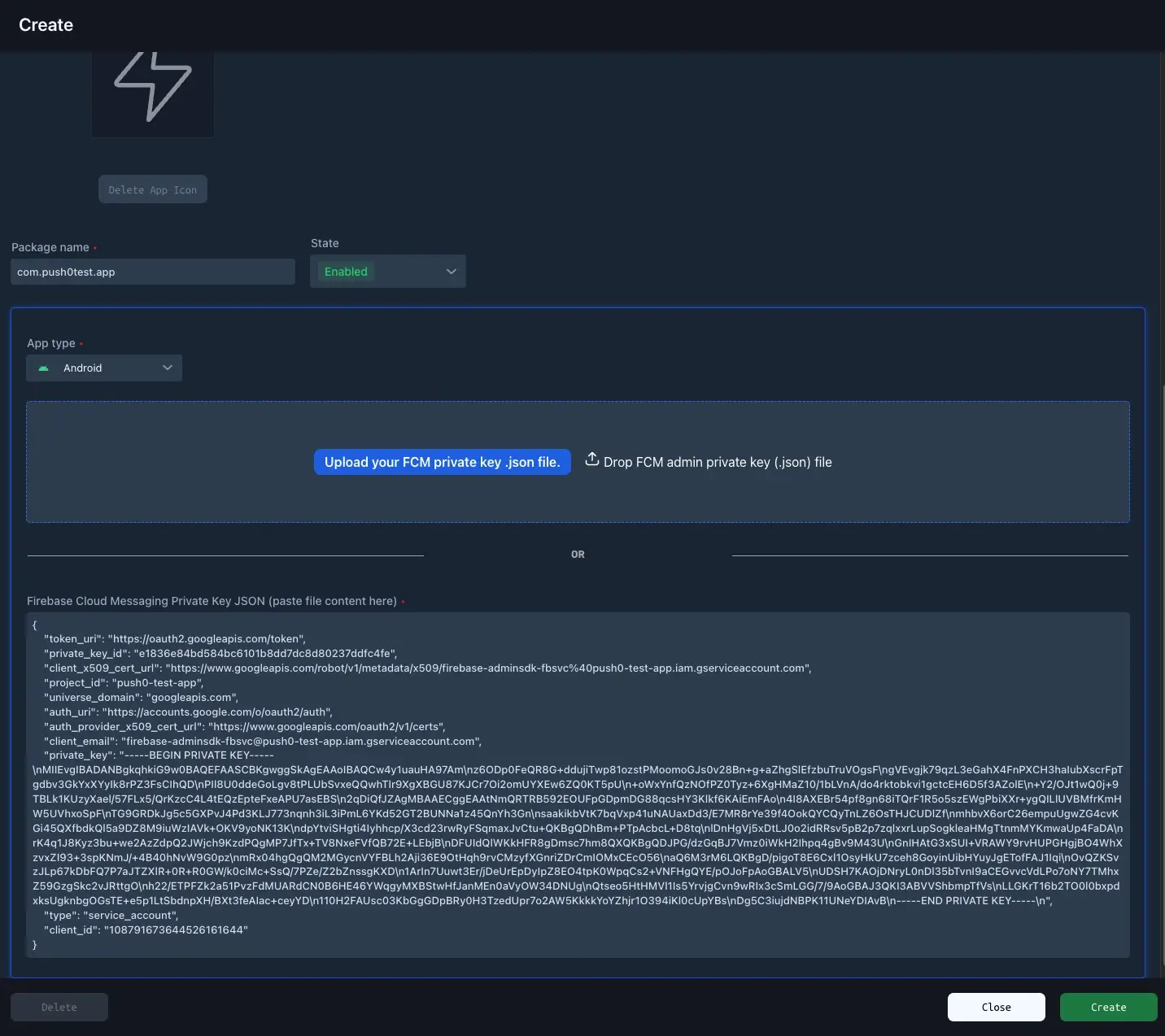
6 - Click create button and if everything was correct - your Push0 Android application configuration is completed 🎉
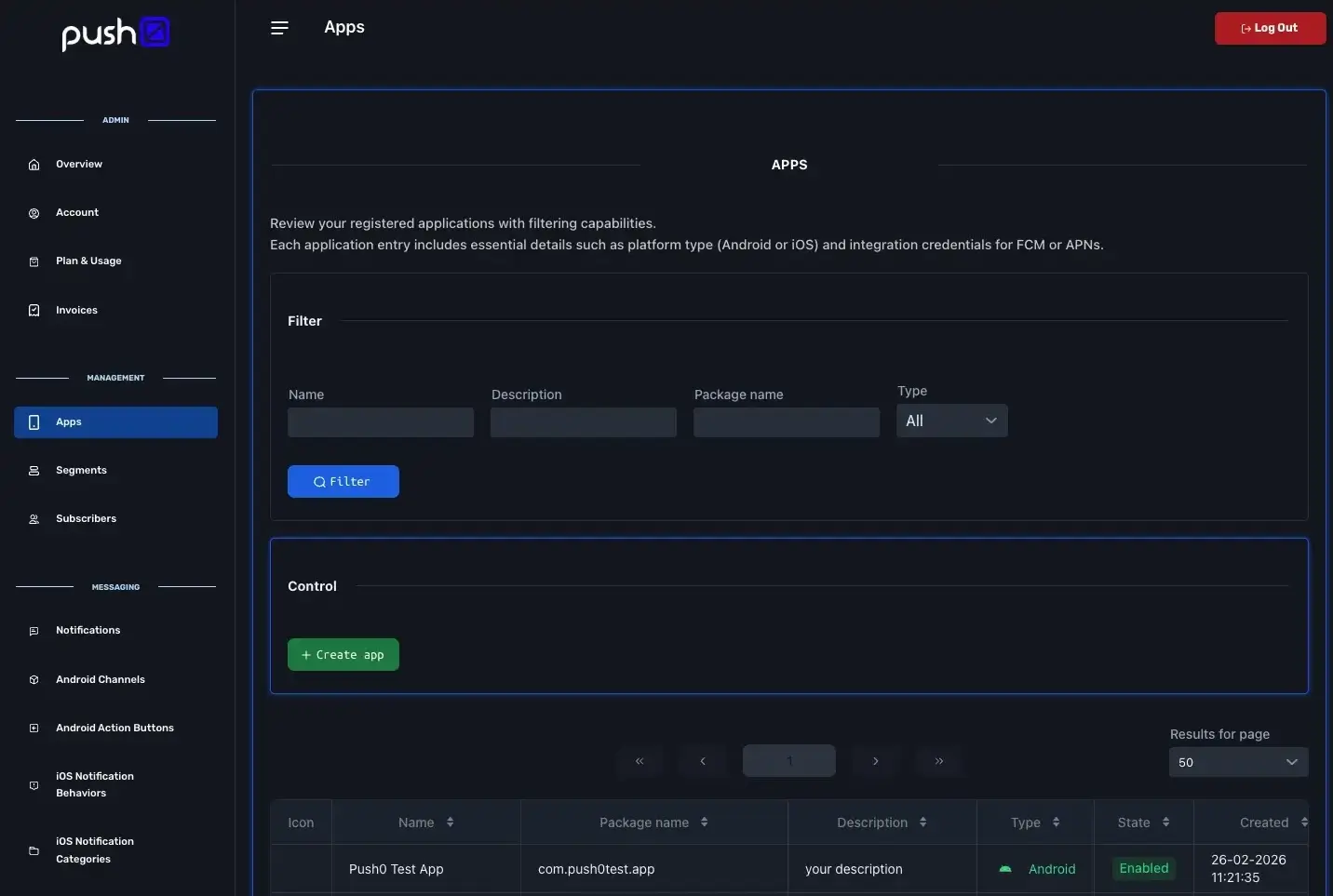
5. Finished ✅
Go to Android SDK integration
or
API Reference