Sending Push Notifications
Danger
Using this method - all notifications are sent ONLY to devices which don't have developer mode enabled .
To follow the instructions below, sign in to your Push0 account and navigate to the dashboard.
1. Creating notification
- In Navigation Messaging section pick Notifications
- Click Create notification.
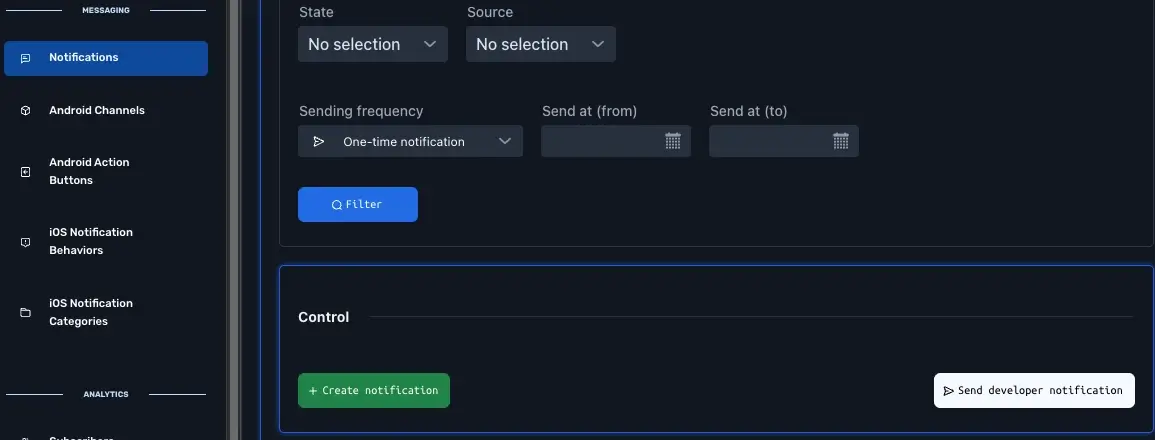
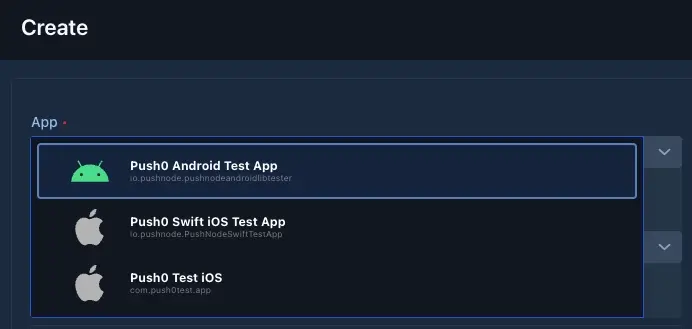
1 - Application (required)
Pick application which will receive your notification
2 - Type (required)
Type of the notification.
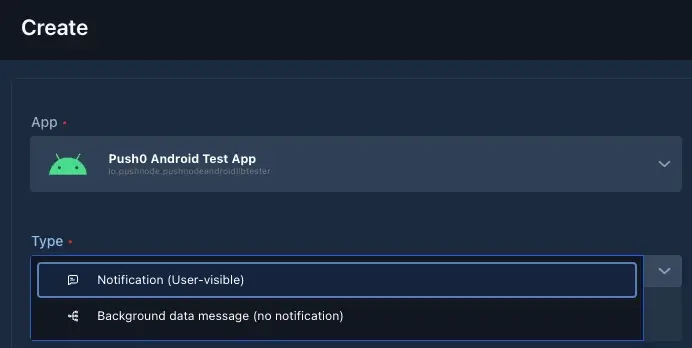
Available types:
- Notification - Requires notification content such as 'title', 'body' or image. Visible to user.
- Background data messsage - Background message which will not be visible to user.
3 - Type: Notification
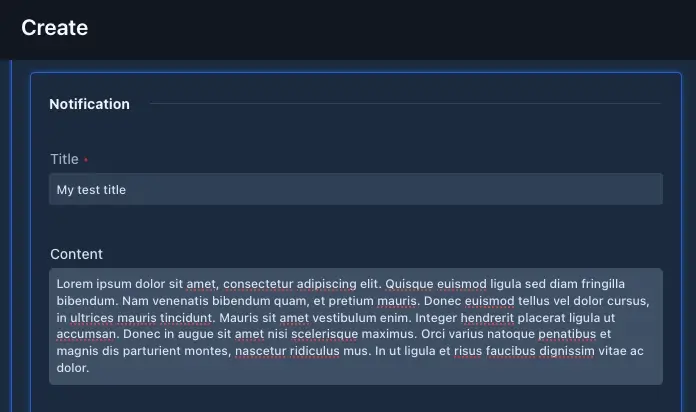
Android:
- Title (required) - notification title. First line of text from the top.
- Content (optional) - notification body. Second line of text from the top - below title. Can contain multiple lines.
- Thread ID (optional) - used to group related messages. For example, conversation - all messages within the same conversation should share the same Thread ID.
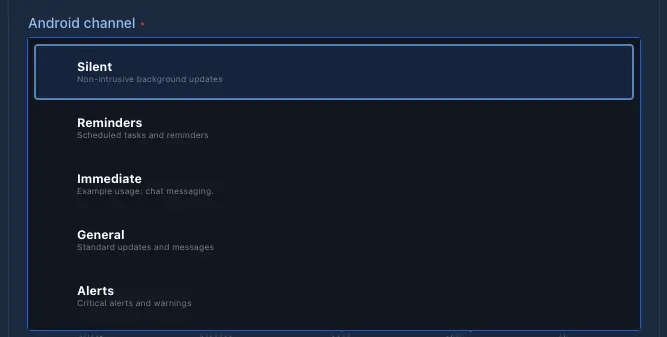
- Android Channel (required) - channels let you control how different types of notifications behave in your app. Each channel you define here will be reflected 1:1 in the user’s Android app.
- Action buttons (optional) - up to 3 buttons which are shown on the bottom of a notification. Each button click has to be handled by your application.
- Large icon (optional) - displays a large icon. Paste your large icon url. Ensure that the url is publicly visible or has required query parameters.
- Big image (optional) - displays a test big image below Content. Paste your big image url. Ensure that the url is publicly visible or has required query parameters.
- Segment (required) - Segment or custom filters. Defines which devices will receive this notification. Carefull - empty filters or no segment selection results in sending notification to ALL your devices withing this application.
- Expiration (required) - Define how long the notification should be delivered before it’s discarded if the device is offline. If the device is offline and the TTL expires, the notification will never be delivered. Choose shorter TTLs for time-sensitive alerts (e.g. OTPs or reminders) and longer TTLs for persistent info (e.g. missed messages).
- Custom payload (optional) - This optional field lets you attach any custom data to the notification. It won’t be shown to the user but can be used by your app to trigger specific behaviors or handle background logic.
You can provide a plain string, number, or a JSON-formatted string (e.g. {"screen": "chat", "id": 123}), depending on what your app expects. The structure and content are entirely up to your implementation.
Note: This data is only available to your app and will not appear in the notification UI.
iOS/iPad:
- Title (required) - notification title. First line of text from the top.
- Sub title (optional) - notification sub title. Second line of text from the top.
- Content (optional) - notification body. Third line of text from the top - below title. Can contain multiple lines.
- Thread ID (optional) - used to group related messages. For example, conversation - all messages within the same conversation should share the same Thread ID.
- iOS notification behavior (optional) - behaviors let you control how different types of notifications behave in your app. Behaviors control sound, notification ,priority, bypass Do Not Disturb (Focus Mode) importance and other notification behaviors.
- iOS notification category (required) - Action button category - allows users to interact directly with a notification by tapping a predefined button.
- Big image (optional) - displays a test big image below Content. Paste your big image url. Ensure that the url is publicly visible or has required query parameters.
- Segment (required) - Segment or custom filters. Defines which devices will receive this notification. Carefull - empty filters or no segment selection results in sending notification to ALL your devices withing this application.
- Expiration (required) - Define how long the notification should be delivered before it’s discarded if the device is offline. If the device is offline and the TTL expires, the notification will never be delivered. Choose shorter TTLs for time-sensitive alerts (e.g. OTPs or reminders) and longer TTLs for persistent info (e.g. missed messages).
- Custom payload (optional) - This optional field lets you attach any custom data to the notification. It won’t be shown to the user but can be used by your app to trigger specific behaviors or handle background logic.
You can provide a plain string, number, or a JSON-formatted string (e.g. {"screen": "chat", "id": 123}), depending on what your app expects. The structure and content are entirely up to your implementation.
Note: This data is only available to your app and will not appear in the notification UI.
4 - Type: Background data messsage
Android or iOS/iPad:
- Audience (device) (required) - Pick your recipient device with enabled developer mode.
- Custom payload (optional) - This optional field lets you attach any custom data to the notification. It won’t be shown to the user but can be used by your app to trigger specific behaviors or handle background logic.
You can provide a plain string, number, or a JSON-formatted string (e.g. {"screen": "chat", "id": 123}), depending on what your app expects. The structure and content are entirely up to your implementation.
4 - Frequency type (Android and iOS/iPad , required)
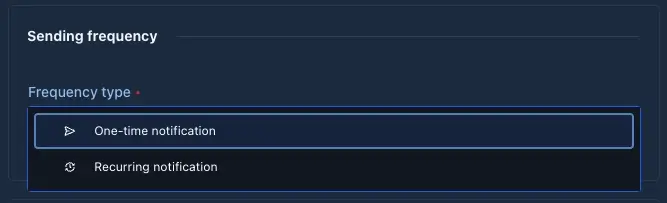
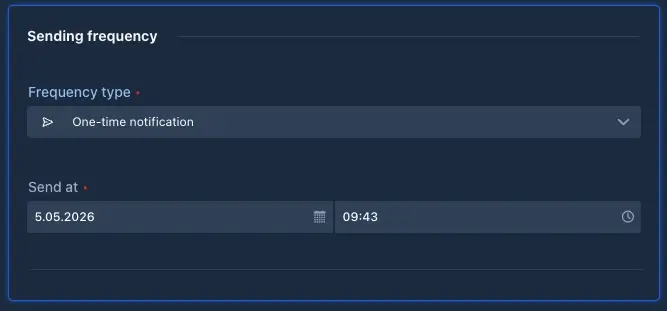
- One-time notification - sent once, either immediately or at a scheduled time. Ideal for single, time-specific events.
Requires exact time and date!
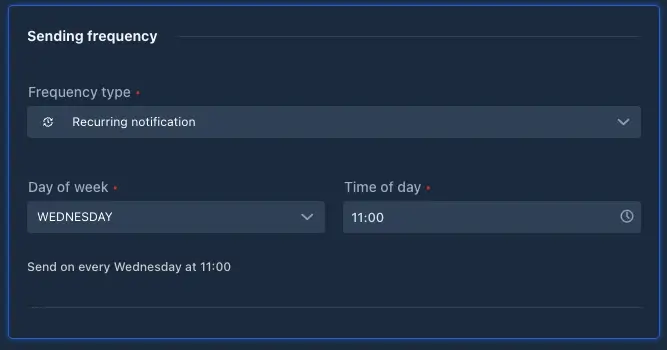
- Recurring notification - sent on a repeating schedule (e.g., daily or weekly). Ideal for reminders and regular updates.
Requires exact time and date and day of week.
6 - Notification Preview
This section has a notification preview on the right side.
Note
The notification preview may differ depending on the Android/iOS/iPad version, device manufacturer, display mode (dark or light), and other factors beyond our control. Please treat this visualization as an approximation of the expected appearance and layout of the notification.
7 - Create
Done
Warning
- app in foreground - incoming notifications are delivered silently and are not displayed by the system. In this state, your app is responsible for handling the notification and deciding how (or if) it should be presented to the user.
- app in background - the notification is displayed in the system notification tray.