Android Notification Channels
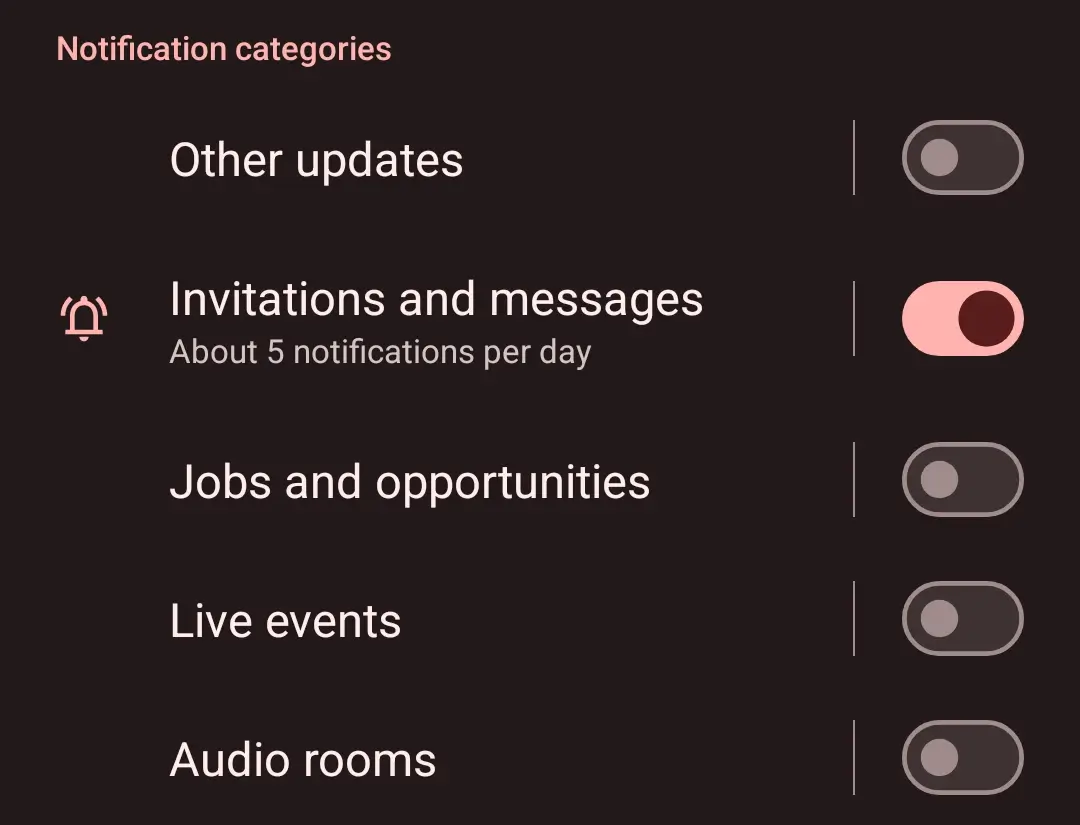
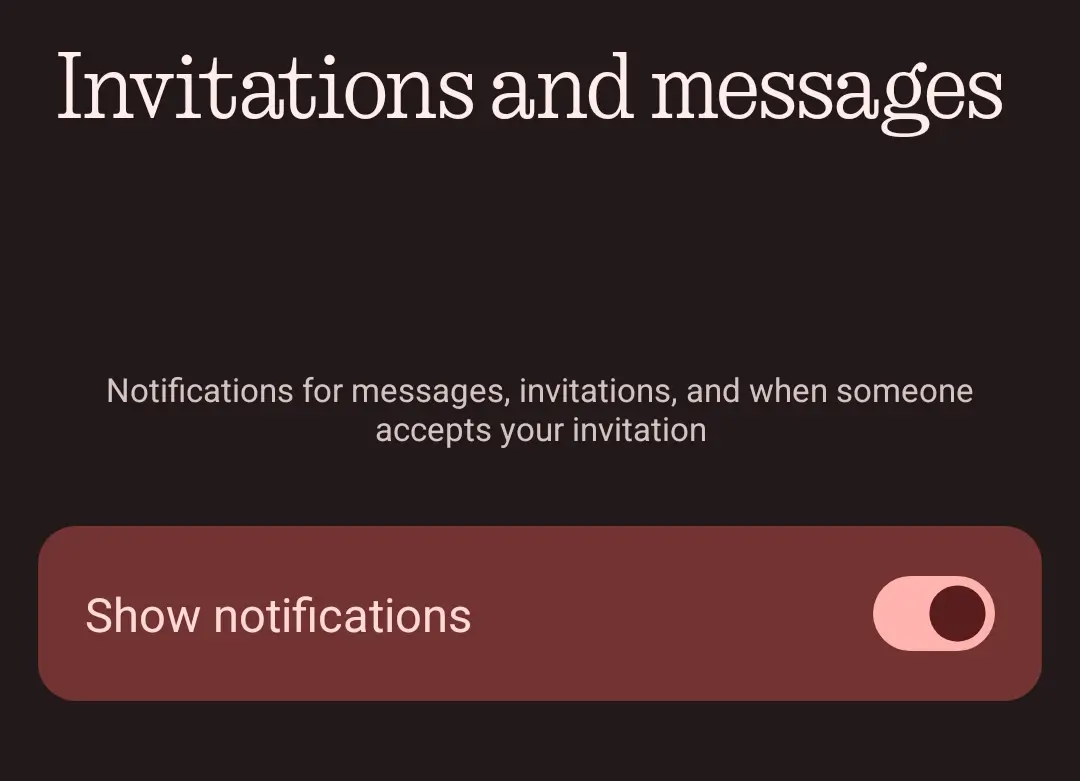
Notification channels let you control how different types of notifications behave in your app. Each channel you define here will be reflected 1:1 in the user’s Android app.
Channels control vibration, LED light color, importance, sound, and other notification behaviors.
These settings apply system-wide and can’t be overridden per notification once the channel is created.
Info
Sending notifications to android devices is not possible without any notification channel
Learn more about Android notification channels in the official documentation:
Android Documentation: Notification Channels
To follow the instructions below, sign in to your Push0 account and navigate to the dashboard.
1. Creating Notification Channel
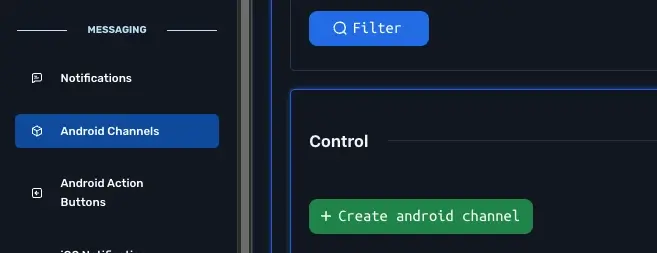
- In Navigation Messaging section pick Android Channels
- Click Create android channel
- Enter all android notification channel information
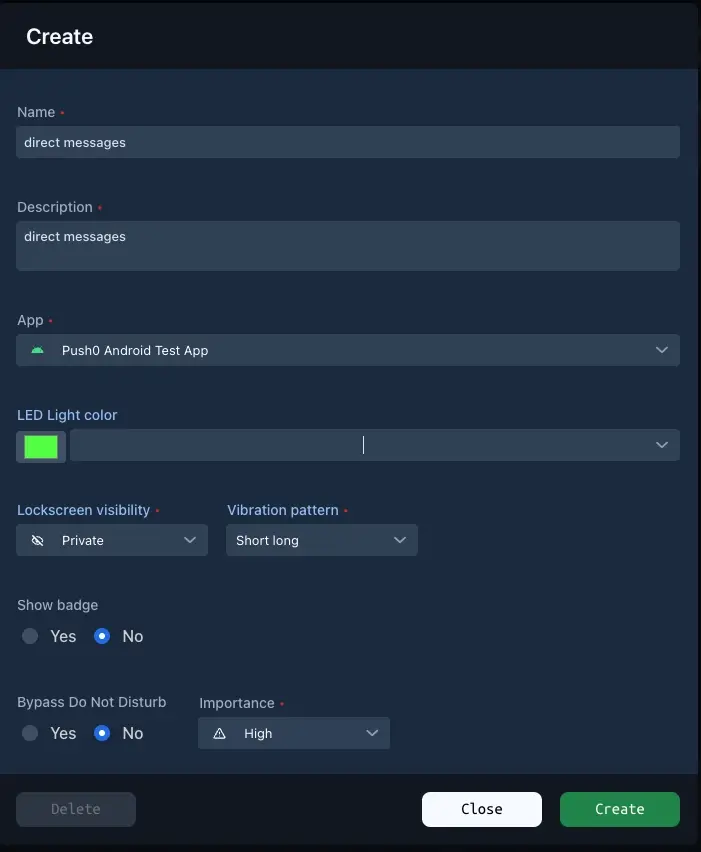
1 - Name (required)
Name of the channel. Will be visible to the user.
2 - Description (required)
Description of the channel. Will be visible to the user.
3 - Application (required)
Pick which app can use this notification channel.
4 - LED light color (optional)
Some phones used to have an LED light at the front of the phone. It was mainly used to notify the user about notifications or other events. Nowadays only a small percentage of phones contain an LED light.
Choose by picking a color using a color picker
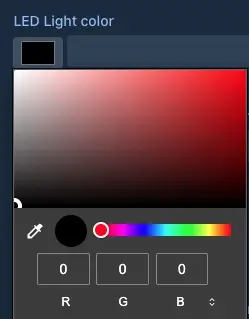
or choose a color from a dropdown list
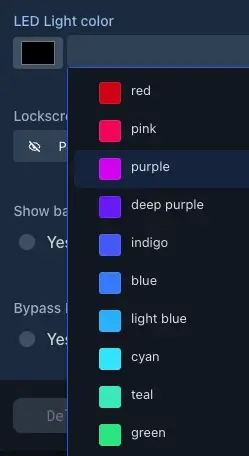
5 - Lockscreen visibility (required)
Controls how much of the notification is shown on the lockscreen.
- Public - full content is visible on the lockscreen.
- Private - shown, but sensitive information is concealed.
- Secret - completely hidden from lockscreen
By adjusting the lockscreen visibility settings, users can tailor their notification experience to balance privacy and accessibility.
6 - Vibration pattern (required)
Lets you define a custom vibration pattern for the notification (e.g. short–short–long).
Some devices or Android versions may ignore this setting, especially newer ones with system-managed haptics.
Info
In order to disable vibration please select None from the dropdown list
7 - Badge (optional)
Controls whether this notification channel can show a badge (dot or number) on the app icon.
Info
Not all Android launchers support badges.
8 - Bypass Do Not Disturb (DND) (optional)
Allows notifications from this channel to alert even when Do Not Disturb is enabled.
Warning
Requires special permission and usually works only with channels set to high importance.
9 - Importance (required)
Defines how much the notification should interrupt the user (sound, vibration, visual popup). Higher importance means more visibility.
- Min - completely silent, hidden from status bar
- Low - completely silent, hidden from status bar.
- Default - sound and vibration, no popup
- High - sound, vibration, and heads-up (popup banner)
Warning
Choose carefully: High importance makes your notification loud and visible; Low might get ignored by the user
10 - Create
Warning
Notification channels are immutable after creation. To change their settings, you need to delete the existing channel and create a new one.