Sending Test (Developer) Push Notifications
Danger
Using this method - all notifications are sent ONLY to devices which have enabled developer mode.
To follow the instructions below, sign in to your Push0 account and navigate to the dashboard.
1. Creating Developer notification
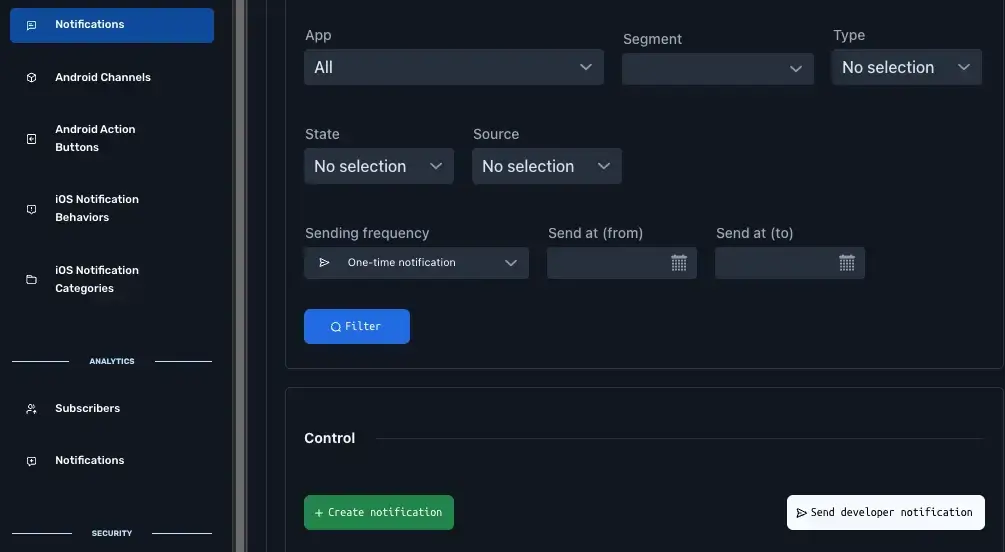
- In Navigation Messaging section pick Notifications
2. Click Send developer notification
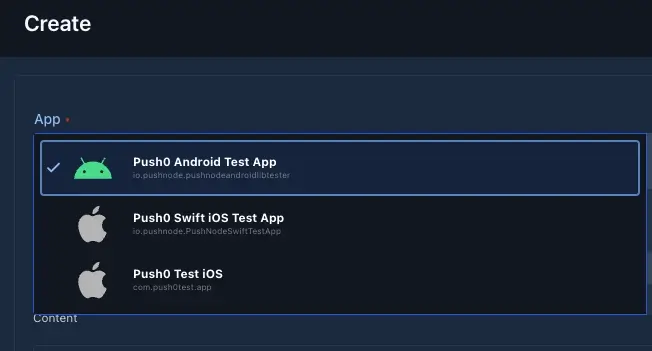
1 - Application (required)
Pick application which will receive your notification
2 - Type (required)
Type of the notification.
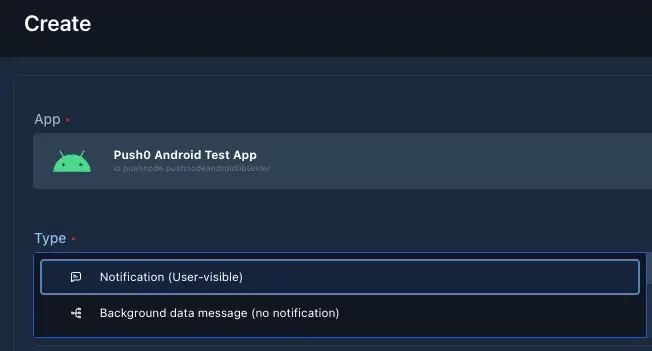
Available types:
- Notification - Requires notification content such as 'title', 'body' or image. Visible to user.
- Background data messsage - Background message which will not be visible to user.
3 - Type: Notification
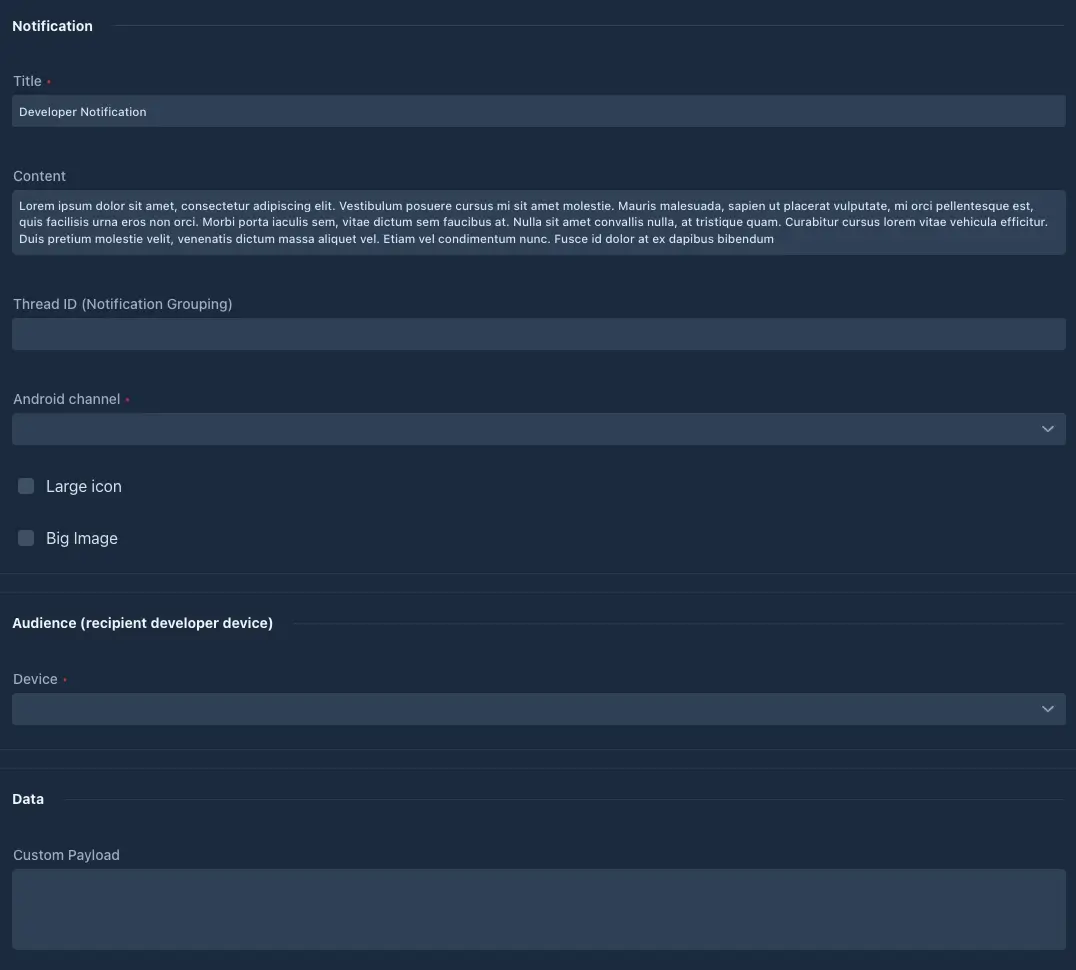
Android:
- Title (required) - notification title. First line of text from the top.
- Content (optional) - notification body. Second line of text from the top - below title. Can contain multiple lines.
- Thread ID (optional) - used to group related messages. For example, conversation - all messages within the same conversation should share the same Thread ID.
- Android Channel (required) - channels let you control how different types of notifications behave in your app. Each channel you define here will be reflected 1:1 in the user’s Android app.
- Large icon (optional) - displays a test large icon.
- Big image (optional) - displays a test big image below Content.
- Audience (device) (required) - Pick your recipient device with enabled developer mode.
- Custom payload (optional) - This optional field lets you attach any custom data to the notification. It won’t be shown to the user but can be used by your app to trigger specific behaviors or handle background logic.
You can provide a plain string, number, or a JSON-formatted string (e.g. {"screen": "chat", "id": 123}), depending on what your app expects. The structure and content are entirely up to your implementation.
Note: This data is only available to your app and will not appear in the notification UI.
iOS/iPad:
- Title (required) - notification title. First line of text from the top.
- Sub title (optional) - notification sub title. Second line of text from the top.
- Content (optional) - notification body. Third line of text from the top - below title. Can contain multiple lines.
- Thread ID (optional) - used to group related messages. For example, conversation - all messages within the same conversation should share the same Thread ID.
- iOS notification behavior (optional) - behaviors let you control how different types of notifications behave in your app. Behaviors control sound, notification ,priority, bypass Do Not Disturb (Focus Mode) importance and other notification behaviors.
- iOS notification category (required) - Action button category - allows users to interact directly with a notification by tapping a predefined button.
- Big image (optional) - displays a test big image below Content.
- Audience (device) (required) - Pick your recipient device with enabled developer mode.
- Custom payload (optional) - This optional field lets you attach any custom data to the notification. It won’t be shown to the user but can be used by your app to trigger specific behaviors or handle background logic.
You can provide a plain string, number, or a JSON-formatted string (e.g. {"screen": "chat", "id": 123}), depending on what your app expects. The structure and content are entirely up to your implementation.
Note: This data is only available to your app and will not appear in the notification UI.
4 - Type: Background data messsage
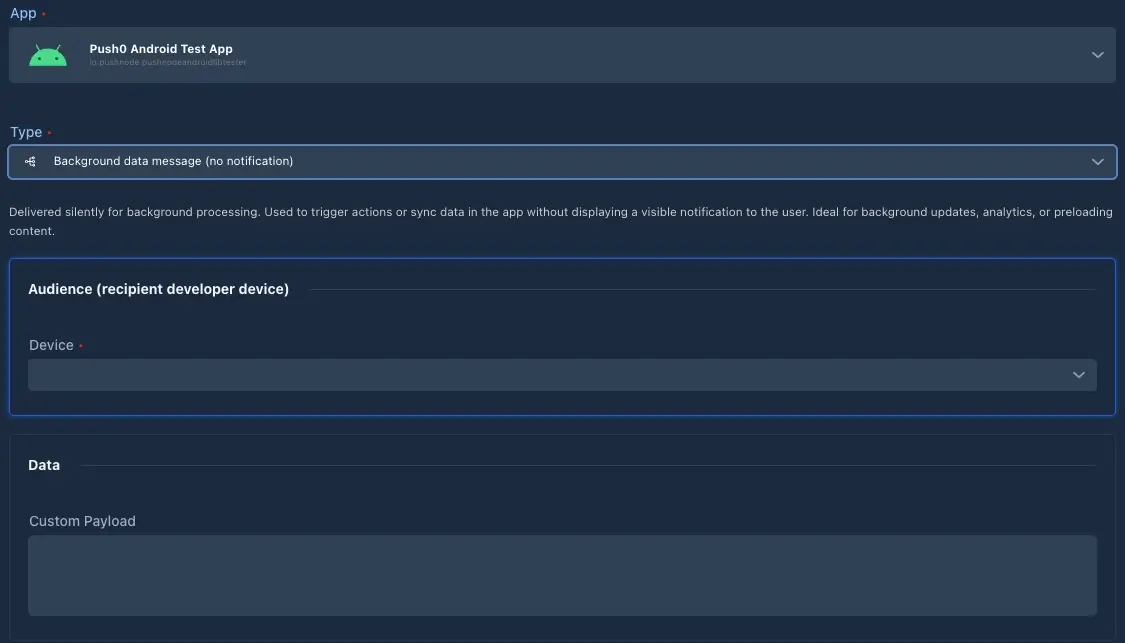
Android or iOS/iPad:
- Audience (device) (required) - Pick your recipient device with enabled developer mode.
- Custom payload (optional) - This optional field lets you attach any custom data to the notification. It won’t be shown to the user but can be used by your app to trigger specific behaviors or handle background logic.
You can provide a plain string, number, or a JSON-formatted string (e.g. {"screen": "chat", "id": 123}), depending on what your app expects. The structure and content are entirely up to your implementation.
Warning
iOS test notifications use APNs Sandbox API.
5 - Create
Done
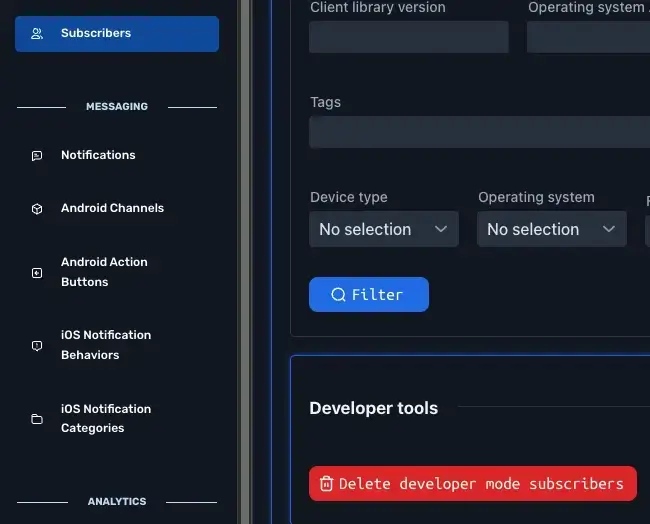
Info
Devices with enabled developer mode can be removed in Subscribers. Click Delete developer mode subscribers button. After this action your registered developer devices wont be able to connect to API. Remeber to reinstall developer apps by removing and installing.