Android Notification Action Buttons
Warning
Developer involvement will be required
Action buttons allow users to interact directly with a notification by tapping a predefined button. Each button performs a distinct action without opening the app’s main UI, enabling fast and contextual responses. They’re especially useful for time-sensitive or routine interactions, like “Mark as read”, “Snooze”, or “Reply”.
These buttons appear directly in the notification on both Android and iOS, and are configured ahead of time via the CMS. You define the available buttons (label and internal name), and then assign one or more of them to a specific notification during creation.
Tapping a button triggers a broadcast or service in the app
Info
Use action buttons to reduce friction, streamline user flows, and increase engagement with your notifications.
Learn more about notification action buttons in the official documentation:
Android Documentation: Notification Actions
To follow the instructions below, sign in to your Push0 account and navigate to the dashboard.
1. Creating Notification Channel
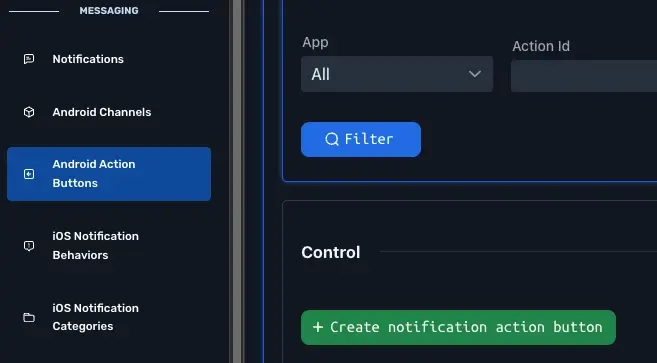
- In Navigation Messaging section pick Android Action Buttons
- Click Create notification action button
- Enter all android action button information
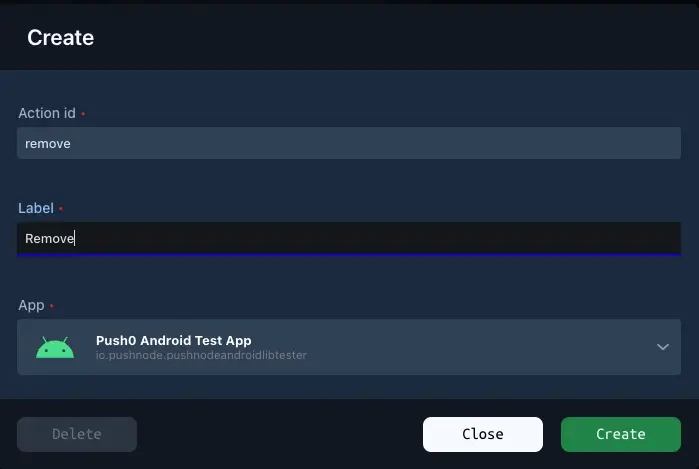
1 - Action Id (required)
A unique identifier for this button, used in your app to detect which action was selected.
2 - Label (required)
The text displayed on the button in the notification.
Visible to the user
3 - Application (required)
Pick which app can use this notification action button.
4 - Create
Warning
- Notification action buttons are immutable after creation. To change their settings, you need to delete the existing action button and create a new one. It's better to create a new action button instead of deleting currently existing button.
- Developer needs to know name and action id in order to handle it correctly in your application.